Track and edit time
Start, stop, and switch timers, review your week, and correct recorded durations in chronosum.
Start, stop, and switch
Choose a task in the timer bar and press play. Press stop when you finish. Starting another task stops the previous timer: your account has one active timer at a time.
Returning to a task on the same day resumes its accumulated time. The dashboard keeps one time entry per task per day.
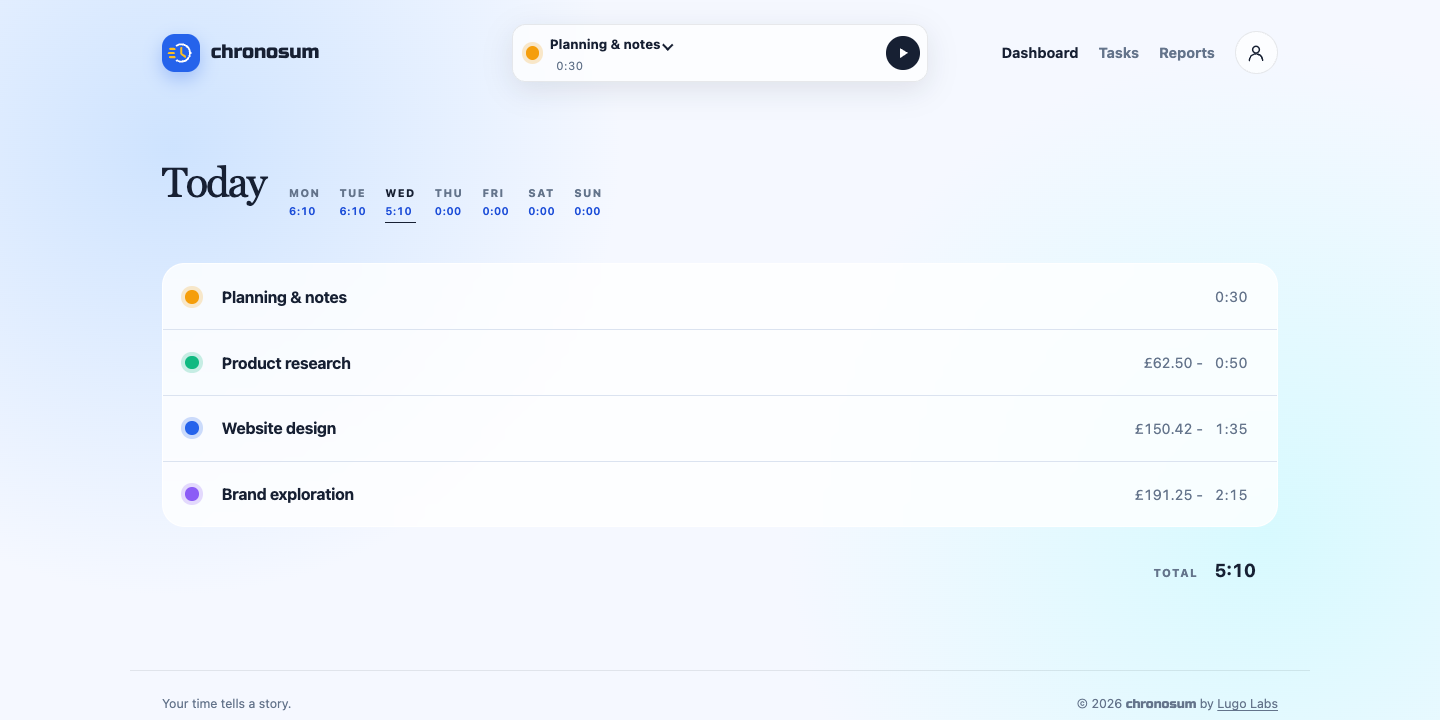
Review the current week
Select a weekday above the task list. Each weekday shows that day's total underneath it, and the selected day stays highlighted. The heading shows the selected weekday, or Today for the current day. Select the heading to return to the current day. Use Reports to review dates beyond the current week.
Correct a duration
- Find the task on the day you want to correct.
- Double-click its displayed duration.
- Enter hours and minutes in H:MM format, such as 1:30 for ninety minutes.
- Press Enter to save. Press Escape or move focus away to cancel.
The duration must be greater than zero, with minutes between 00 and 59. An edit cannot move the start time into a different day. Editing a running timer changes its accumulated duration while leaving it running.
Common questions
Can two tasks run at once?
No. Starting a new task stops the previous active timer.
Why was my duration rejected?
Check the H:MM format and make sure the value is positive. A value that would push the entry's start into the previous day is also rejected.
Does the browser automatically remove idle time?
Automatic inactivity, sleep, and screen-lock handling belongs to the Mac companion. Use the Mac app if you want those adjustments.