Reports and hourly amounts
Choose a reporting period and understand task hours, hourly rates, and calculated amounts in chronosum.
Choose a reporting period
- Open Reports. The initial view covers the current month.
- Select the date-range field to open its calendar.
- Choose a start and end date, or use This month or Previous month.
- The report refreshes after you select the range.
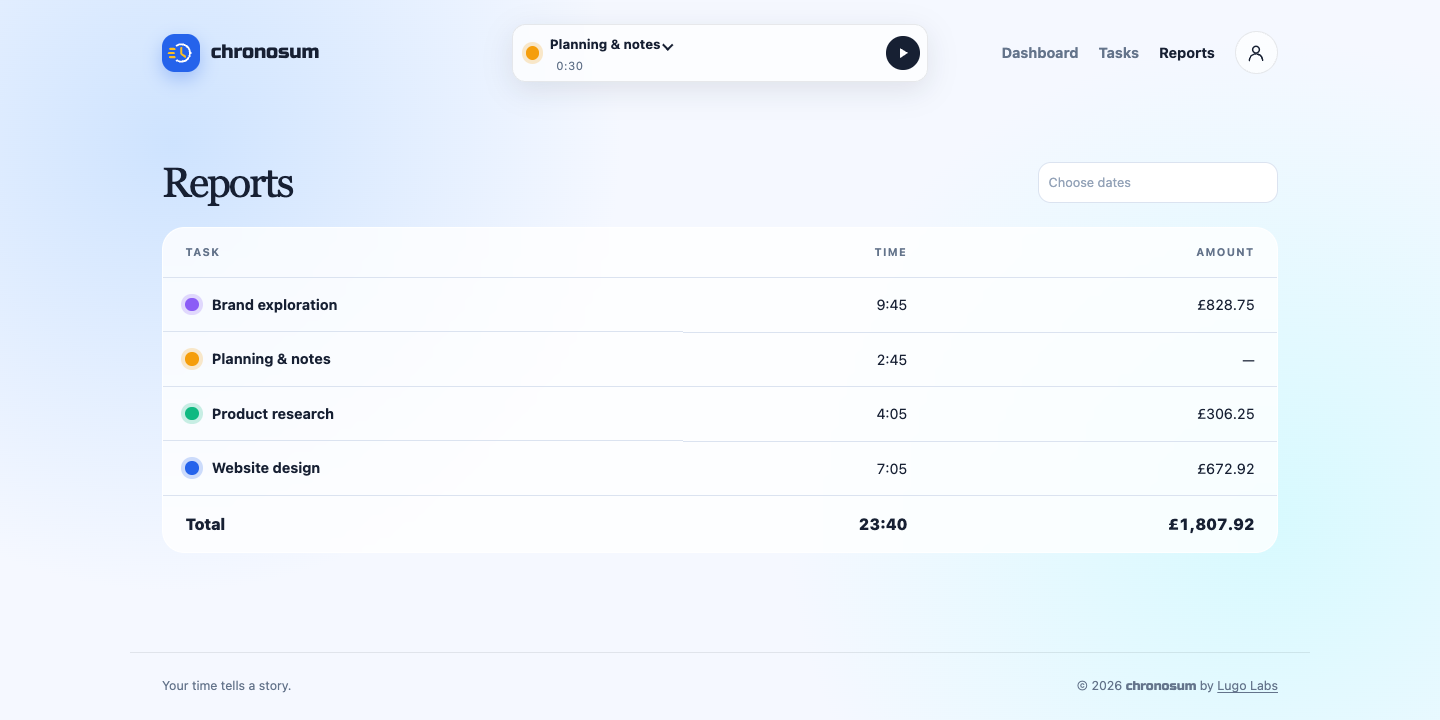
Read the report
- Task: the name and colour of work with recorded time in the selected period.
- Time: the task's total duration, shown as hours and minutes.
- Amount: the task's current hourly rate multiplied by recorded hours. A dash means no hourly rate is set.
- Total: all recorded time and the sum of calculated amounts.
For example, 1:30 at a rate of 80 per hour produces an amount of £120.00. Amounts currently display in pounds sterling. There is no currency conversion.
Understand what is included
The report includes entries whose start date falls within the selected range, including its first and last day. An active timer contributes its elapsed time when the report is loaded. Reload the page to see updated running time.
Amounts use the current task rate, including for historical entries. They are calculated work values; this report does not create or send an invoice.
Review a week of work
- Choose the first and last day of the week in the date-range calendar.
- Compare each task's hours with the Total row to see how your time was divided.
- If a duration looks wrong, review and correct time on the dashboard for a day in the current week, then reopen the report.
- If an amount is missing, check whether the task has an hourly rate. A task without a rate still contributes to total time.
Common questions
Why does the report say “No time recorded”?
No entries start within that date range. Choose another range or record time against a task.
Why did an older report's amount change?
Check whether the task's hourly rate or a recorded duration was edited. Both affect calculated amounts.