Task management and hourly rates
Organise tasks with names, colours, and optional hourly rates in chronosum.
Create a task
- Open My tasks and select New task.
- Enter a name you can recognise quickly, such as “Website design”.
- Choose a colour to distinguish the task in lists and timer controls.
- Optionally enter an hourly rate as a number, without a currency symbol.
- Select Create Task.
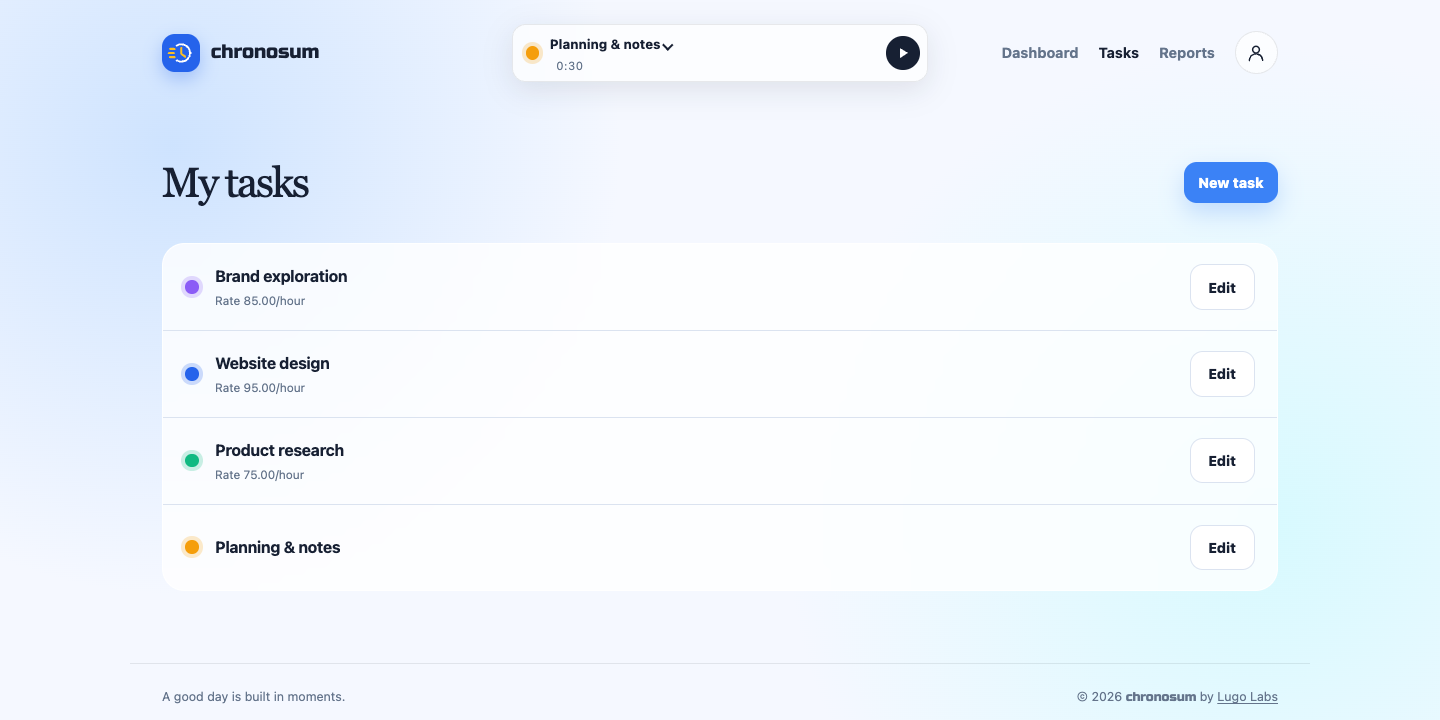
Choose useful task names
A task is the unit you track time against. You can use a client project, a recurring activity, or a specific piece of work as a task. For example, “Product research” and “Planning & notes” can have separate timers and report totals.
Separate client work from internal work
For a website project, create a task such as “Client website design” and give it an hourly rate. Create a second task called “Internal planning” with no rate. Switch between them as your work changes: both contribute to your recorded hours, while only the task with a rate has a calculated amount.
Use the time-tracking guide to start and switch timers, then review hours and amounts in Reports. Naming related tasks consistently makes them easier to recognise in the task list and report.
Edit a task
Select Edit beside the task, update its name, colour, or rate, then select Update Task. Your existing time stays associated with that task.
Use hourly rates
Rates are optional and must be zero or greater. A blank rate means the task tracks time without a calculated amount. Reports use the task's current rate, so changing it also changes calculated amounts for previously recorded time.
Common questions
Does creating a task start its timer?
No. Choose the task in the timer bar and press play when you begin working.
Can I track work without an hourly rate?
Yes. Leave the rate blank. Reports still show the recorded hours, with a dash in the task's Amount column.