Getting started
Create your chronosum account, add a task, and record your first work session on the web.
1. Create your account
Open Create an account and enter your name, email address, and a password of at least six characters. Confirm your password, then select Create account. You will arrive at your dashboard.
Already registered? Log in with your existing email address and password. The web and Mac apps use the same account.
2. Add your first task
Open My tasks, choose New task, and give your work a recognisable name. Choose a colour and leave the hourly rate blank unless you want calculated amounts in reports. Select Create Task.
3. Record a work session
- Choose your task in the timer bar.
- Press the play control to start tracking.
- Work on the task, then press stop when you finish.
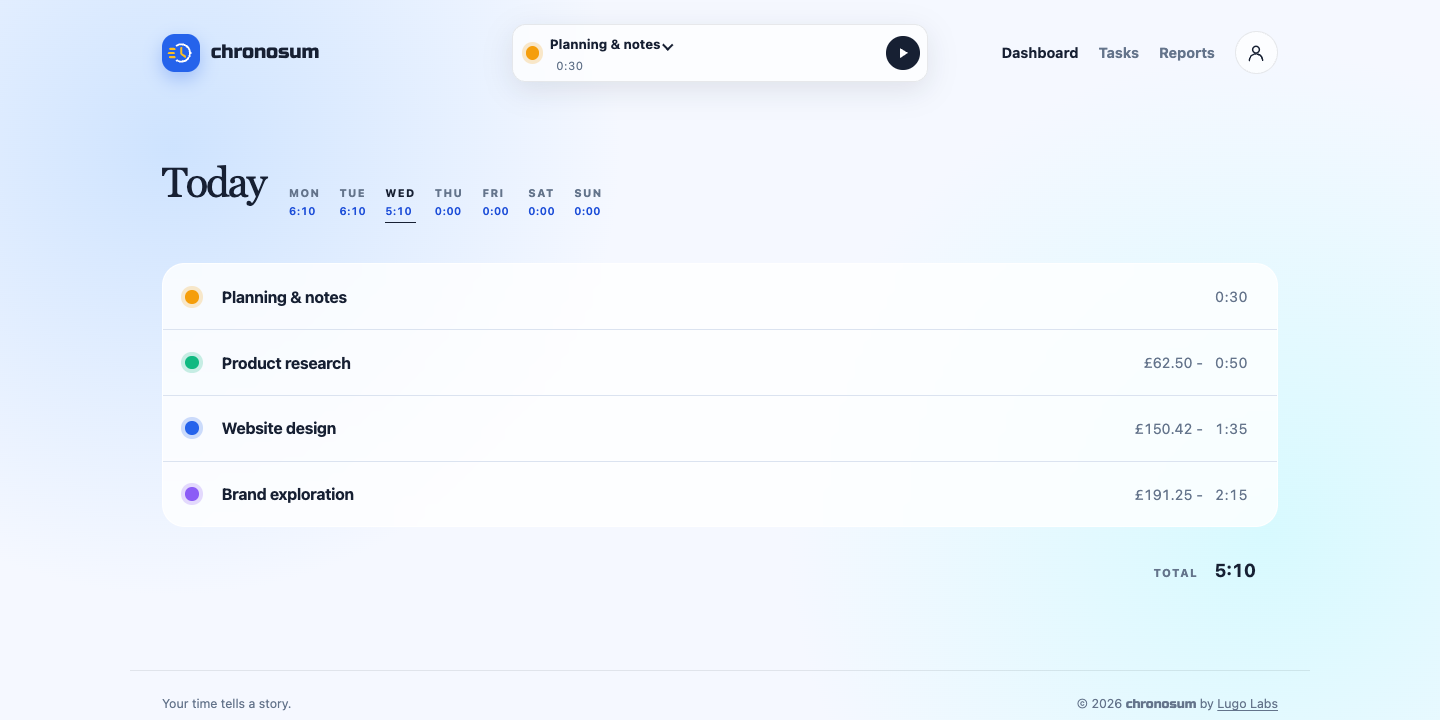
4. Review your day
Your task's recorded duration appears on the dashboard. Select a weekday to review another day in the current week. Open Reports when you want a longer date range.
Common questions
Why is my dashboard empty?
A new account has no recorded work. Create a task and start its timer. Tasks with recorded time appear on the selected day's dashboard.
Do I need the Mac app?
No. You can track time in your browser. The optional Mac app adds a menu bar timer and inactivity handling.