Mac menu bar time tracking
Connect the chronosum Mac app, track from your menu bar, and manage inactivity, sleep, and screen lock.
Requirements and installation
chronosum for Mac requires macOS 13 or later and supports Apple silicon and Intel Macs. You need a chronosum account and a connection to the web service.
When you have a Mac installer, open its disk image, drag the app into Applications, and launch it from there. A public download is not linked here yet.
Connect your account
- Open the Mac app from Applications and select its sign-in action.
- Your browser opens an authorisation page. Log in to the chronosum account you want to use.
- Approve the connection, then return to the Mac app.
The request expires after five minutes. If it expires, start sign-in again from the Mac app. Your password is entered on the website; the Mac app stores its access token in macOS Keychain.
Track from the menu bar
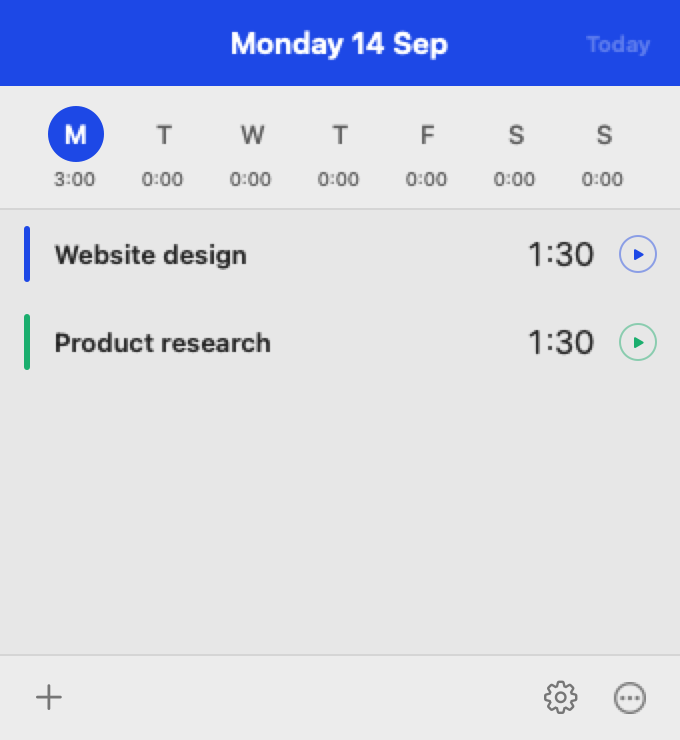
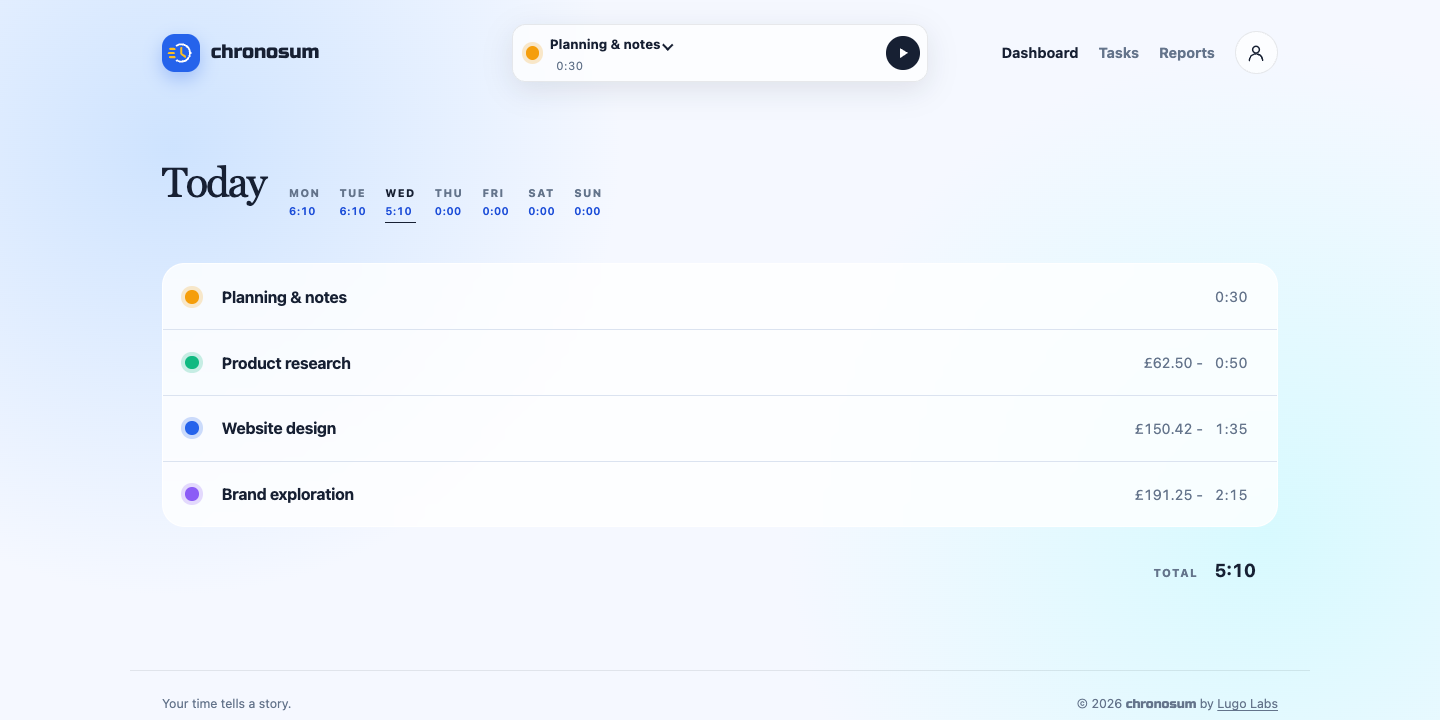
Use the menu bar controls to start, stop, and switch tasks. The companion reconciles with the web every 30 seconds and refreshes when you open its popover. Changes made in the browser may take a short time to appear.
Handle time away
The app checks keyboard and pointing-device inactivity every 15 seconds. Choose a 5, 10, or 15 minute threshold in its settings; the default is five minutes. Once the threshold is reached, the timer freezes locally at the last input. When you return, the completed inactive period is deducted.
Sleep, screen lock, and an inactive user session are also accounted for. If the deducted time was work, use Restore in the popover or notification. A pending inactive period is saved across app restarts.
Launch at login
Enable Launch at Login in the popover settings. If macOS requests approval, follow the prompt to Login Items in System Settings.
Common questions
What if the app cannot reach the server?
Check your connection and use Retry. If your session has expired or been revoked, connect your account again through the browser.
Why are there no tasks?
Create your first task on the website using the link in the empty state, then return to the Mac app.